FAQ
Where is Android-Sync
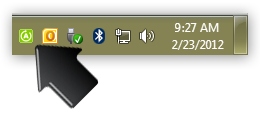
It is here, in your system tray.
Try to double click on the green icon!
Duplicated items after sync
This may happen if you are upgrading from an older version of Android-Sync, or using Android-Sync for the first time. Please try to delete the duplicated items from your Outlook, and sync again.
Contacts do not appear after sync
Please check the “Display Options”, “Categories” settings, of the Contacts application, from your Android device.

New contacts / events do not synced back to Outlook
When creating new entries in the Android contacts or calendar application, please make sure to choose the correct account to save them.

Nothing happened when connecting my phone to the USB port
Android-Sync will try to detect your android phone, based on our collection of known devices database. If your device is not in our database, it may not get detected. Please keeping your phone connected to your PC, then export a log file from the about window of Android-Sync, and send it to support@android-sync.com We will try to add the new device support to the database, and you should get your phone detected in the next version release of Android-Sync. Thank you for your help.
Please make sure to turn on the [ USB debugging ], before connecting your android phone to the computer.
How to turn on the USB debugging?
From your device, go to [Settings]. Select [Applications] – [Development], then enable the [USB debugging] option.

How to install the ADB Driver
Android-Sync connection wizard can help you to download and install the proper ADB drivers for your android phone. Otherwise, you may try to search it from your android phone’s manufacturer homepage for supports.

Not enough system resources error
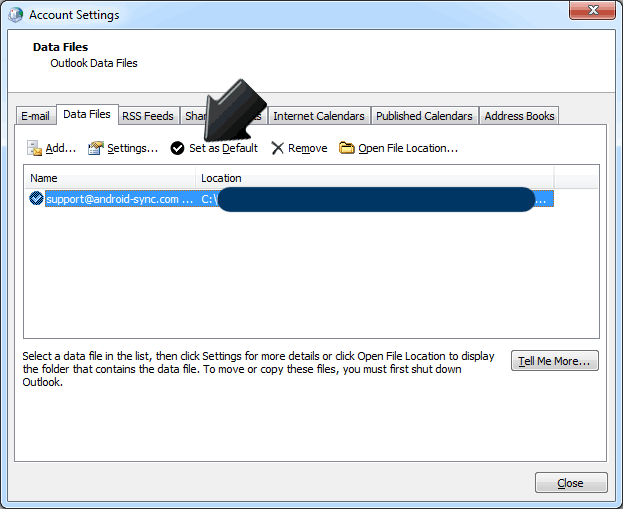
You need to ensure Personal Folders is set as the default Data File under Mail options in Windows. To Do this, please follow these instructions:
1. Open Control Panel
2. Double click on Mail
3. Click on Email Account or Data Files
4. From the opened dialog window, select the ‘Data Files’ tab
5. Select the correct data file and click ‘Set as Default’ as the following screen shot:

Non-English characters garbled
PLEASE BACKUP YOUR CONTACTS AND APPOINTMENTS FIRST! THE GARBLED CHARACTERS MAY TRANSFER BACK TO YOUR OUTLOOK AFTER THE LANGUAGE AND REGION SETTING IS CHANGED.
Non-English characters turns into “?” after sync.
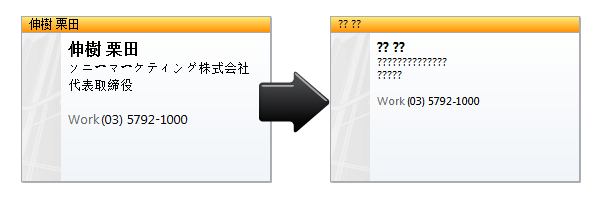
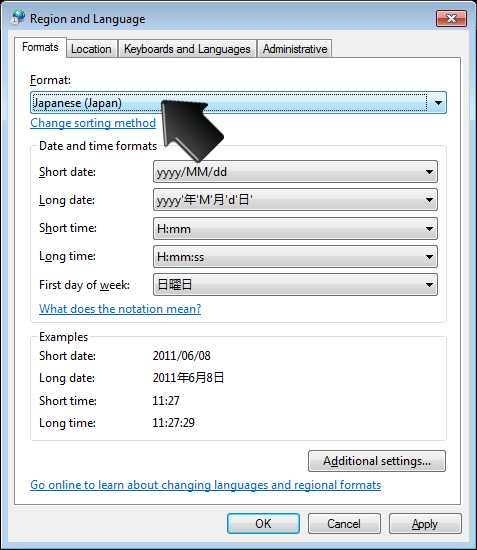
You need to correct the “Language and Region” settings from the Windows Control Panel.
1. Open the Control Panel from Windows. And click on the “Clock, Language and Region”.
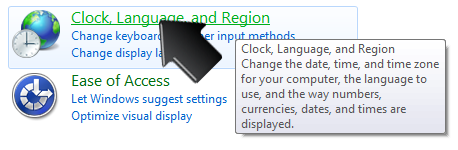
2. Click on the “Region and Language”.
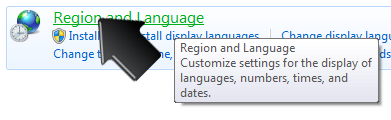
3. In the new window, choose the correct language and country from the “Format” field.
4. PLEASE MAKE A BACKUP OF YOUR CONTACTS AND APPOINTMENTS BEFORE TRYING TO SYNC AGAIN.